
Submitting via the Web
This guide covers the web-based submission flow. If you prefer working with Git and pull requests, see Submitting via Pull Request.
Prerequisites
Before you begin, you'll need:
- A GitHub account (used for authentication and to host your app's build repository)
- A Flatpak manifest (JSON or YAML) that builds your app
- An AppStream metainfo file (
.metainfo.xml) with your app's metadata, screenshots, and release notes
If you're new to Flatpak packaging, the Flatpak documentation is a good starting point.
Step 1: Register Your App
Sign in to friendlyhub.org with your GitHub account, then navigate to Dashboard > My Apps > Register New App.
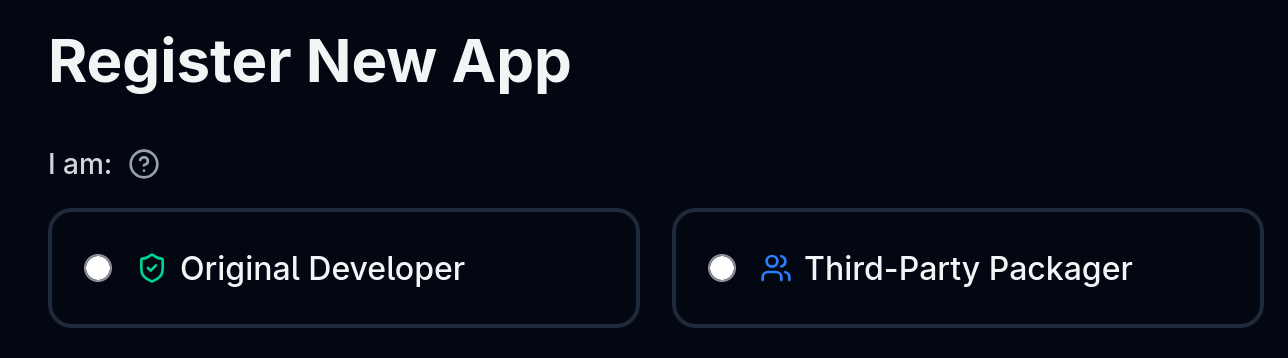
Choose Your Developer Type
- Original Developer -- You are the author or official maintainer of the software. You'll need to verify ownership of the domain in your app's ID.
- Community Packager -- You're packaging someone else's software for Flatpak. No domain verification is needed, but you must specify the original app's upstream ID.
Choose Your App ID
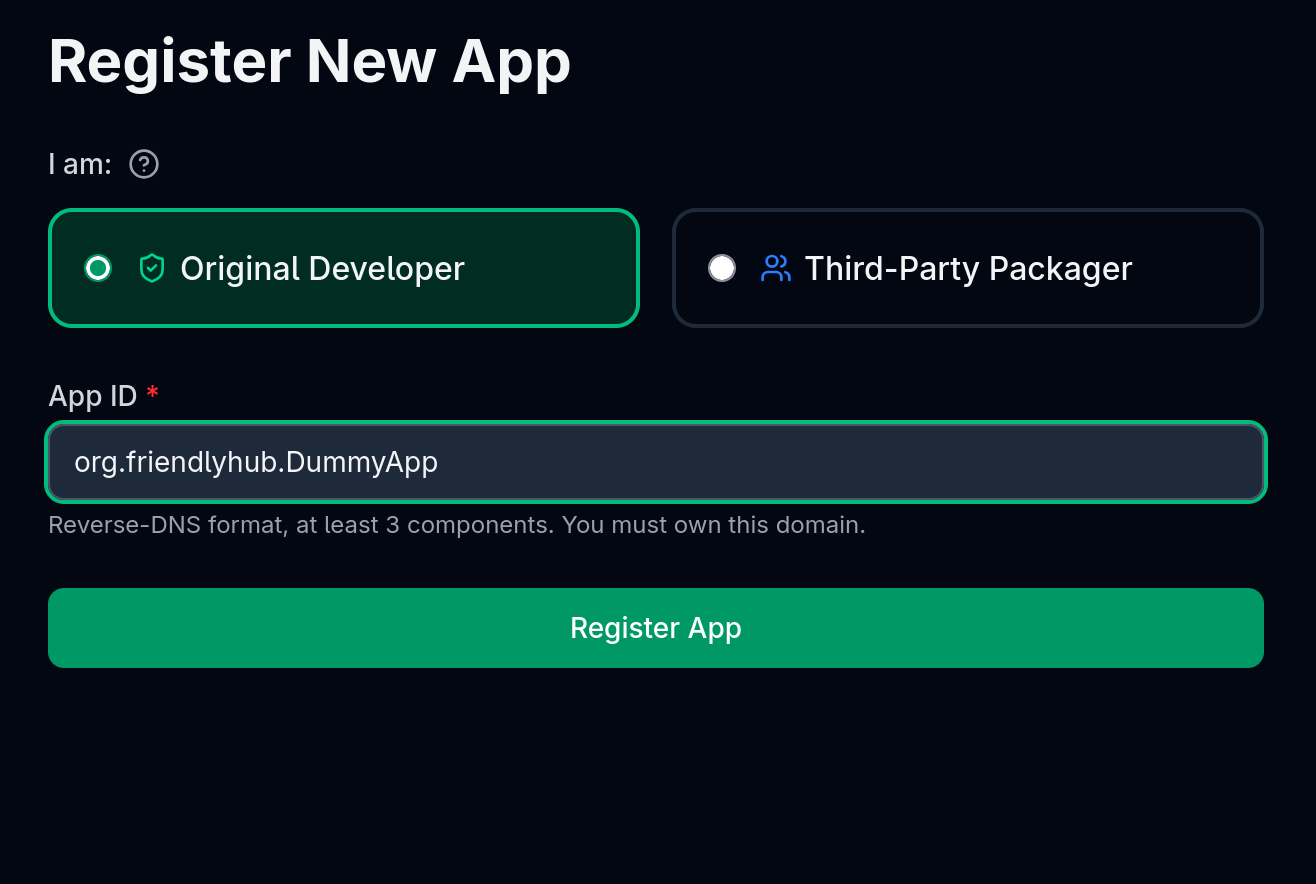
Your app ID must be in reverse-DNS format with at least three components, e.g. org.example.MyApp.
For forge-hosted projects (IDs starting with io.github.*, io.gitlab.*, etc.), FriendlyHub can automatically verify ownership by checking your GitHub organisation or user account.
For custom domains, you'll need to place a verification token at https://yourdomain.org/.well-known/org.friendlyhub.VerifiedApps.txt. The token is generated during registration and is shared across all apps under the same domain.
Step 2: Submit a Version
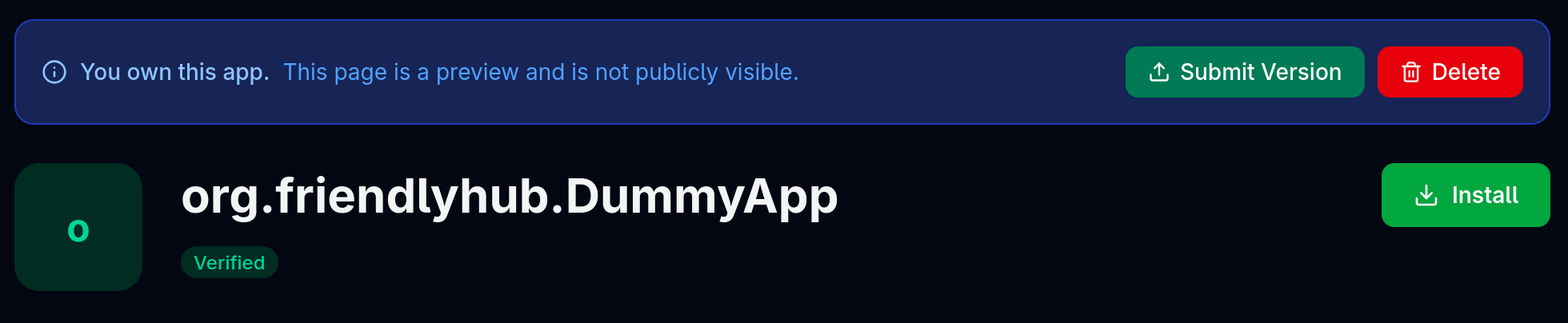
Once your app is registered and verified (if applicable), go to your app's page in the dashboard and click Submit Version.
The submission page has two sections:
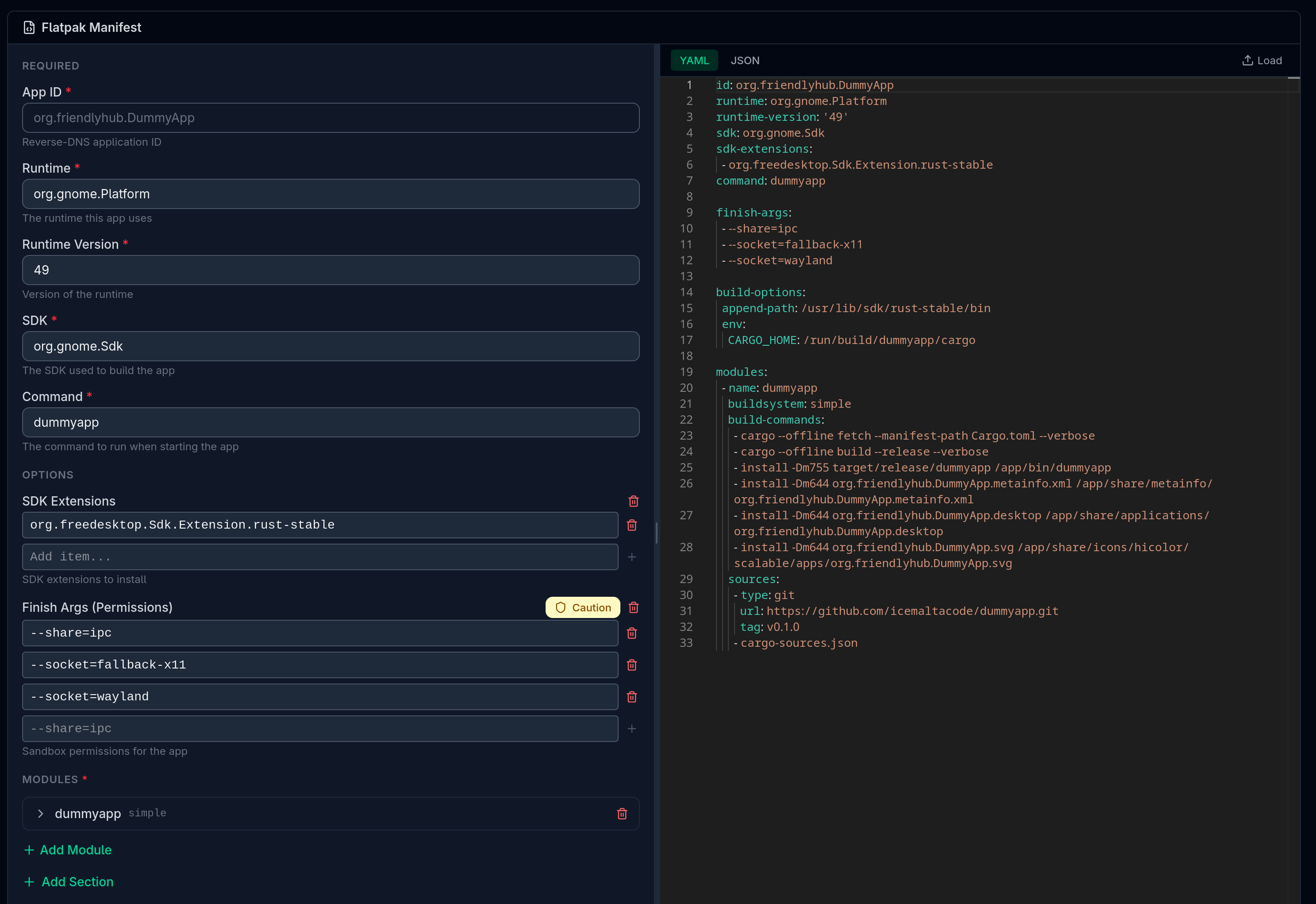
Flatpak Manifest
You can write your manifest using either:
- Form view -- A guided form that helps you fill in common fields
- Editor view -- A full code editor with JSON/YAML syntax highlighting
The manifest must include the standard Flatpak manifest fields (id, runtime, sdk, command, modules). You can switch between JSON and YAML formats at any time.
TIP
The form and editor views update each other. This means that, for example, you can start using the editor and, as you make changes, the form will auto-update. You can then switch to the form, make changes there, and see your changes updated in the manifest.
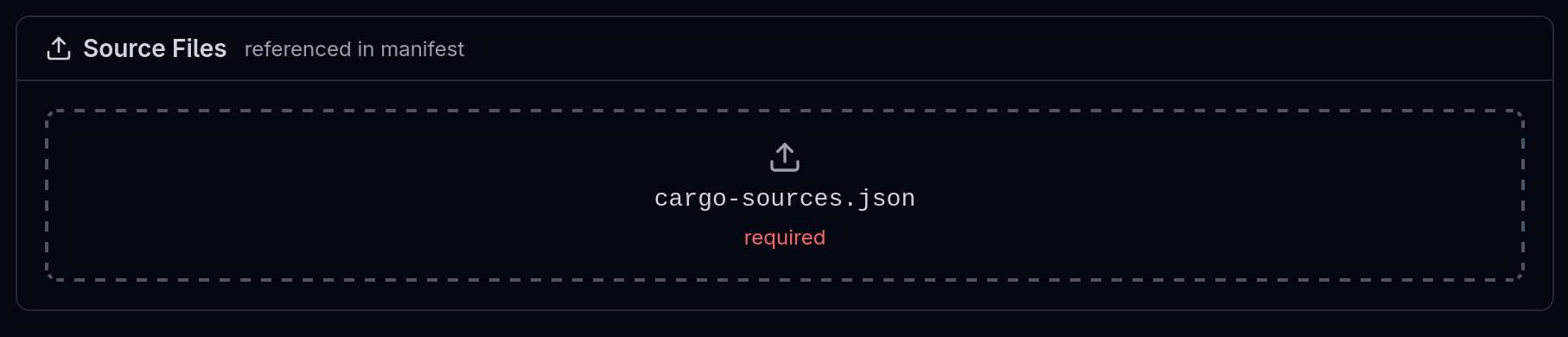
If your build requires additional source files (patches, data files, etc.), you can upload them as part of the submission.
Target Platforms
Below the source files section, you can choose which CPU architectures to build for:
| Option | What it does |
|---|---|
| x86_64 + aarch64 (default) | Builds for both Intel/AMD and ARM devices |
| x86_64 only | Builds only for Intel/AMD (64-bit) |
| aarch64 only | Builds only for ARM (64-bit) |
Most apps should target both architectures. Choose a single architecture only if your app bundles architecture-specific binaries that aren't available for both platforms (e.g. a proprietary x86_64-only library).
If your app builds from source and doesn't depend on architecture-specific binaries, it will almost certainly build on both architectures without any changes.
TIP
If your Flatpak manifest has modules that need different sources per architecture (e.g. downloading different tarballs for x86_64 and aarch64), you can use the only-arches and skip-arches fields at the module or source level in your manifest. See the flatpak-builder documentation for details.
AppStream Metainfo
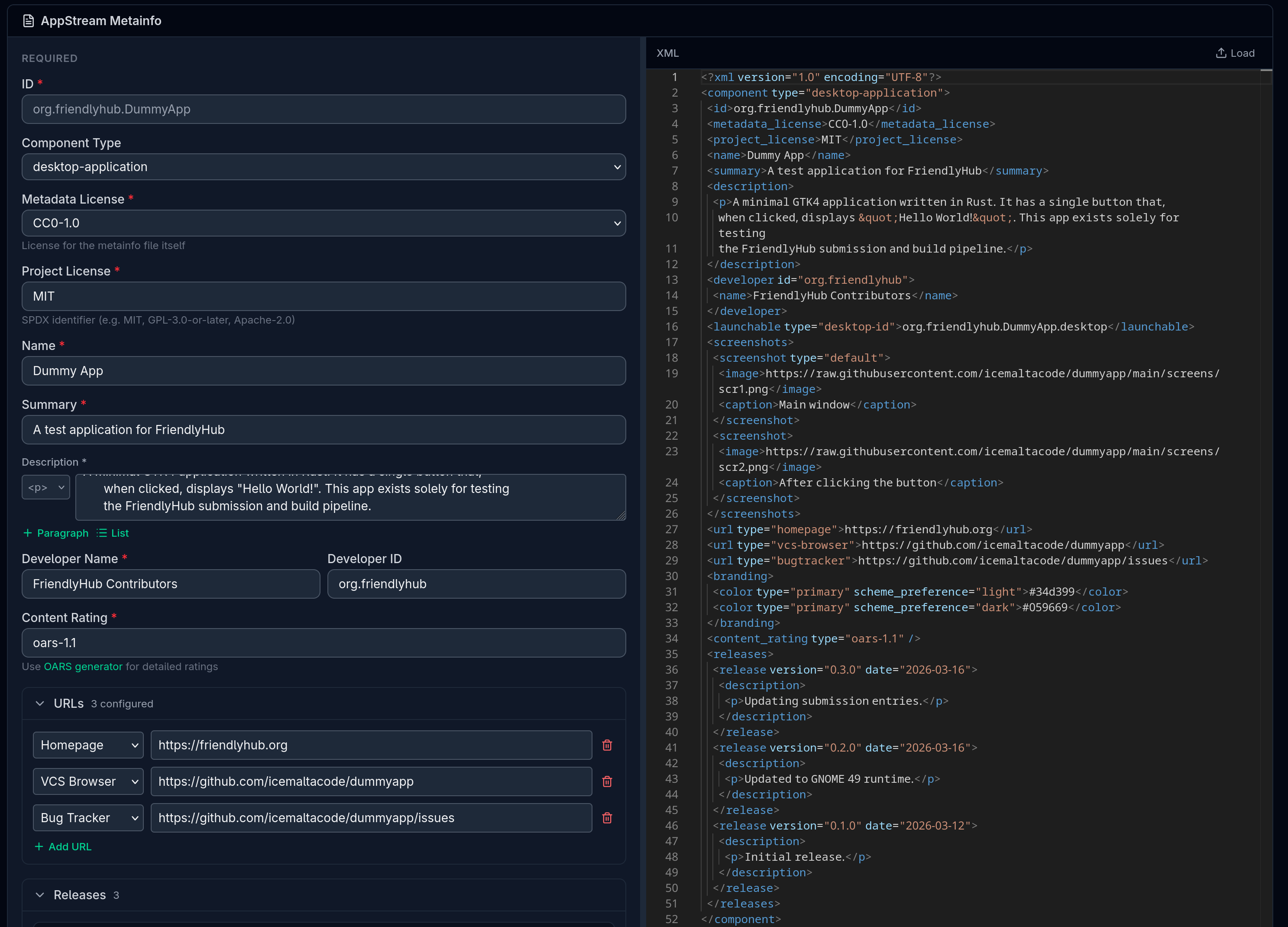
Similarly, the metainfo section has both a form view and a code editor. Your metainfo file should include:
- App name and summary
- A description
- At least one screenshot
- At least one release entry
- Project licence (SPDX identifier)
Step 3: Automated Checks
When you submit, the following automated checks run immediately:
| Check | What it does |
|---|---|
| Manifest lint | Validates that your manifest has all required fields and correct structure |
| Permissions audit | Flags potentially dangerous sandbox permissions (e.g. full host filesystem access) |
| Metadata completeness | Checks for a .desktop file and AppStream metainfo reference |
Warnings don't block your submission, but failures do. You'll see detailed feedback on what to fix.
Step 4: Build
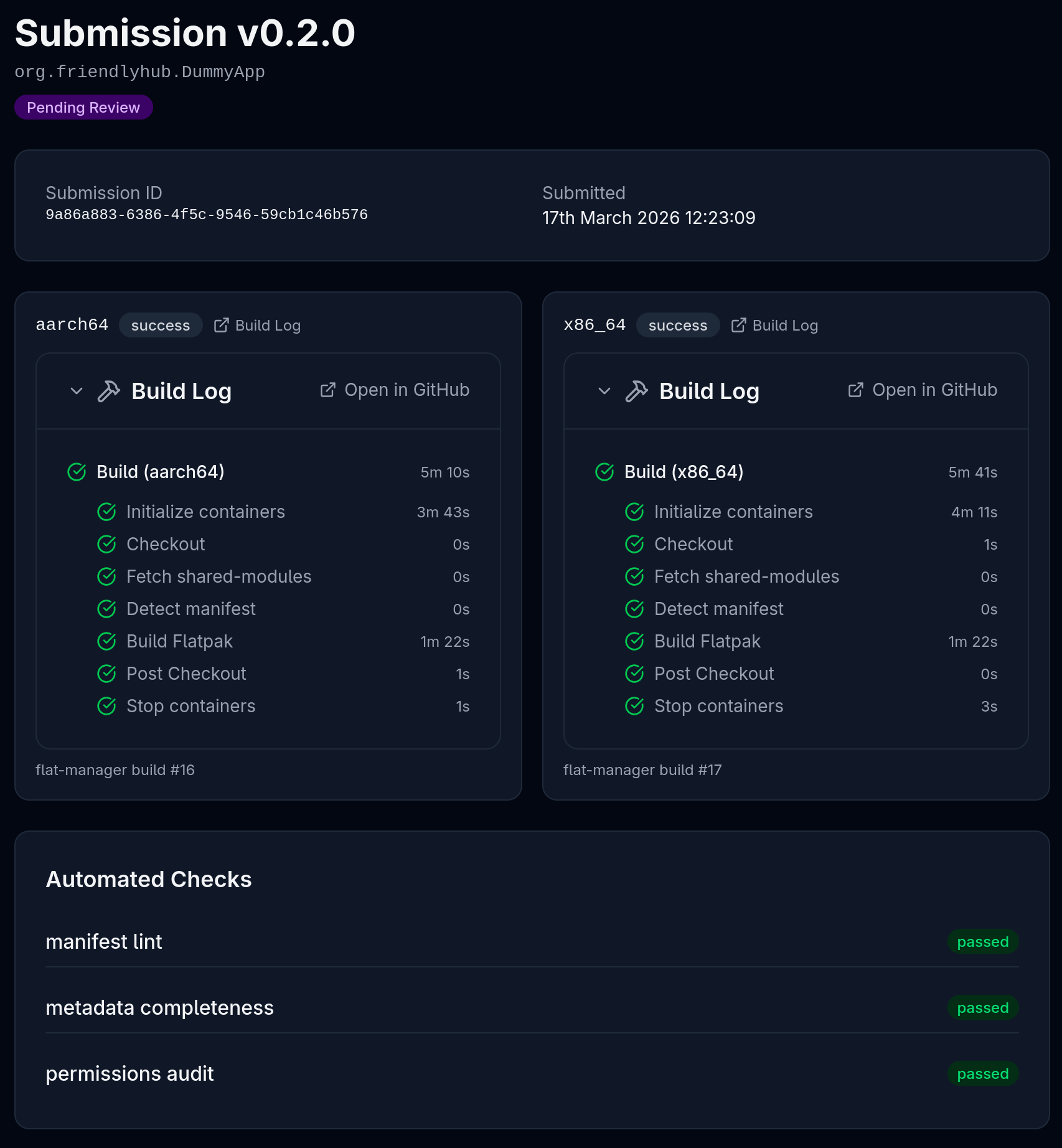
After automated checks pass, FriendlyHub creates a GitHub repository for your app under the friendlyhub organisation and triggers a build via GitHub Actions. If you selected multiple target platforms, a separate build runs for each architecture. The build process (per architecture):
- Runs
flatpak-builderwith your manifest inside a native container for that architecture - Uploads the built Flatpak to flat-manager
- Notifies the FriendlyHub API that the build is complete
You can follow the build progress for each architecture in real-time from your submission's detail page. Builds typically take around 10-15 minutes depending on your app's dependencies. Your submission moves to pending review only when all architecture builds have succeeded.
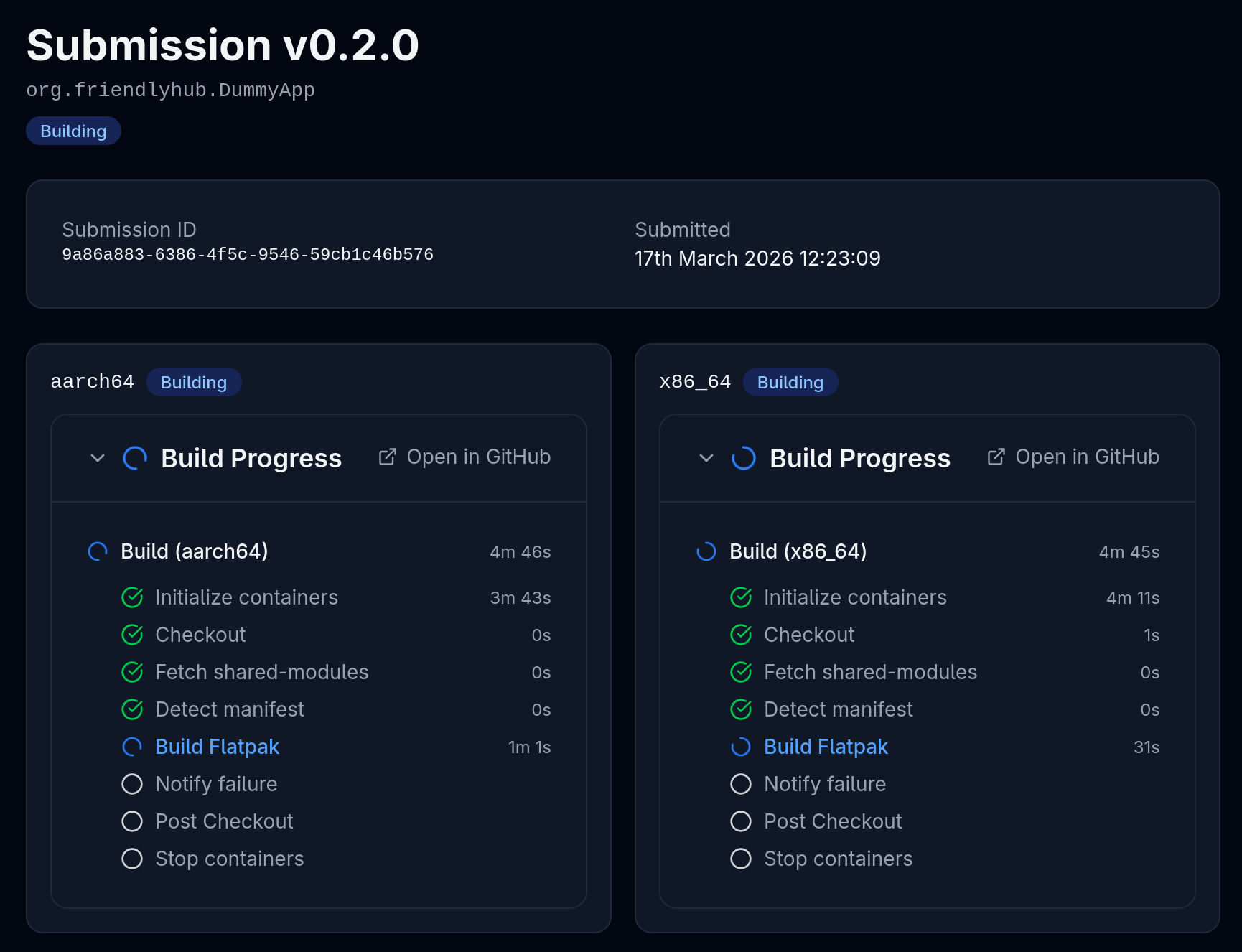
If you want to monitor your build in detail, click Open in GitHub to see the GitHub logs from the build process.
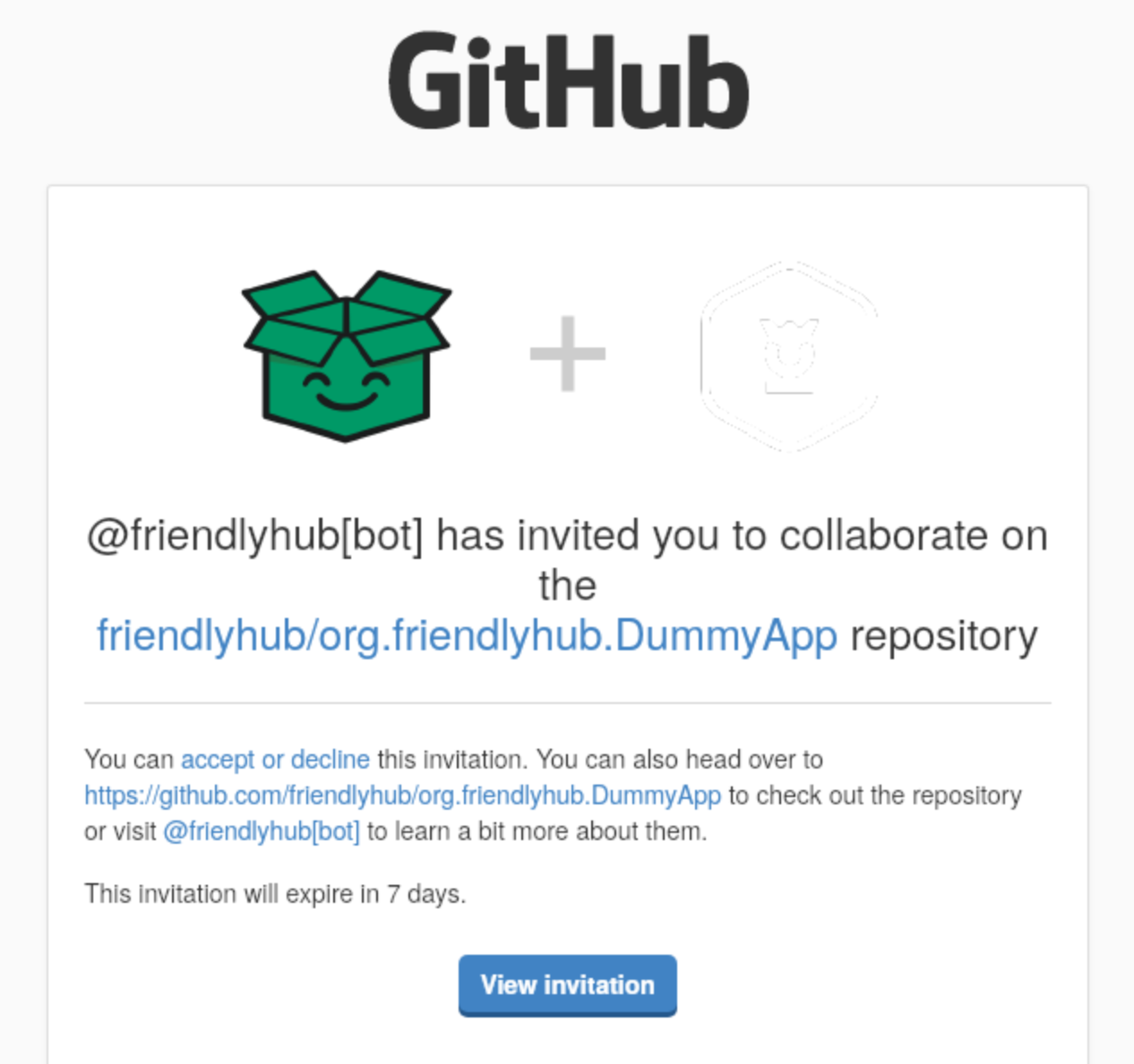
At this point, you should also receive an email from GitHub inviting you to the repository that was created for your submission. Be sure to accept this invitation within 7 days.
Once the build completes, you will be shown the status of the automated checks and, if everything seems OK, your submission will change to pending review.
Step 5: Review
Once the build succeeds, your submission enters the review queue. A human reviewer will check for:
- Safety -- No malware, no deceptive behaviour
- Accurate metadata -- The app description and screenshots match what the app actually does
- Working app -- The built Flatpak runs and does what it claims
IMPORTANT
Whilst it can be frustrating to be waiting for your app to be approved, please understand that all reviewers do so on a voluntary basis!
What We Don't Gatekeep On
FriendlyHub follows the Friendly Manifesto. We do not reject apps based on:
- Icon quality or design choices
- Naming conventions or desktop environment guidelines
- Toolkit or framework choice
- Code quality or architecture
- App complexity, size, or scope
- Whether the code was written with AI assistance
The reviewer will either approve your submission or request changes with specific, actionable feedback. There is no "rejected" status.
After Approval
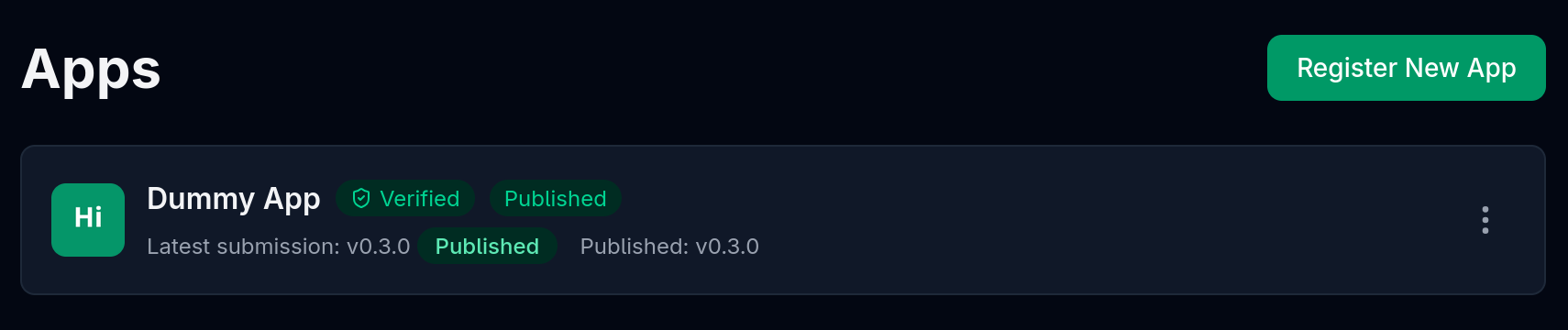
Once approved, your app is published to the FriendlyHub repository. Your Apps palge will now show a published badge.
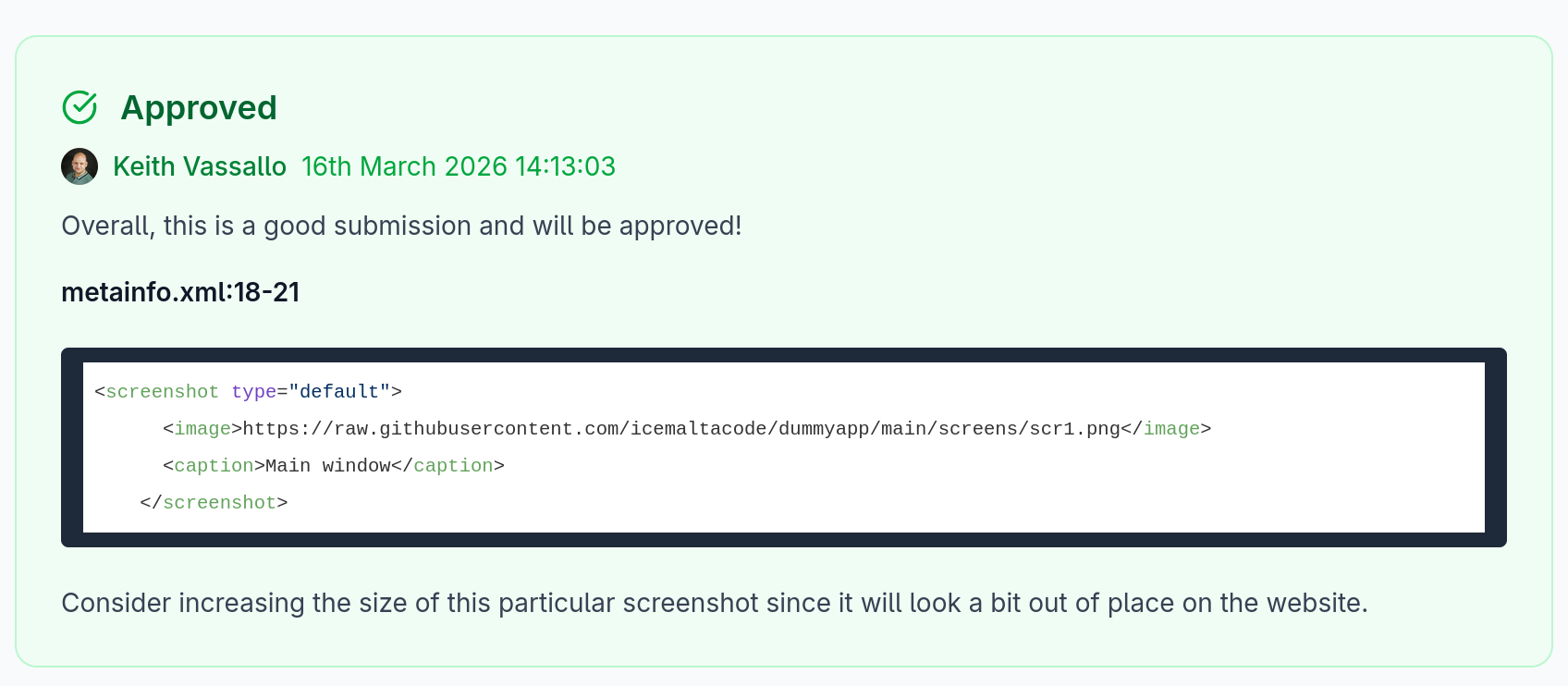
When approving an app, the reviewer may have left some comments or suggestions for your submission. On the other hand, if there's something wrong with your submission, the reviewer will request changes. You can view any comments the reviewer has left on your submission in the submission page.
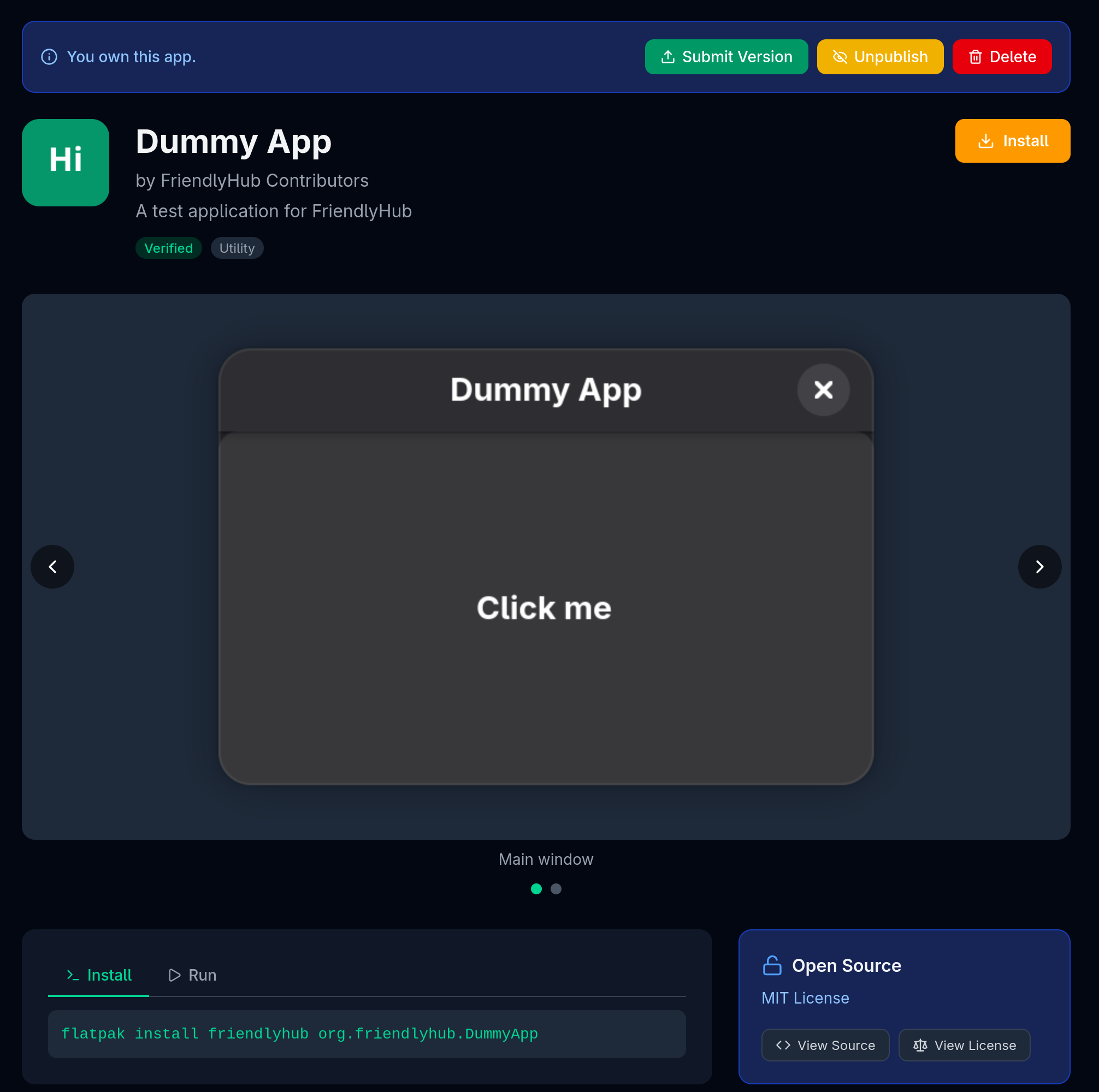
Users can install it immediately:
flatpak install friendlyhub org.example.MyAppYour app will also appear on the FriendlyHub website, in GNOME Software, and in KDE Discover for users who have the FriendlyHub remote configured.
Submitting Updates
To submit a new version, go to your app's page in the dashboard and click Submit Version again. The process is the same: update your manifest and/or metainfo, submit, automated checks, build, review. Verified developers may be fast-tracked on updates.
You can also submit updates via pull request to your app's GitHub repository (friendlyhub/{app-id}). See Submitting via Pull Request for details.